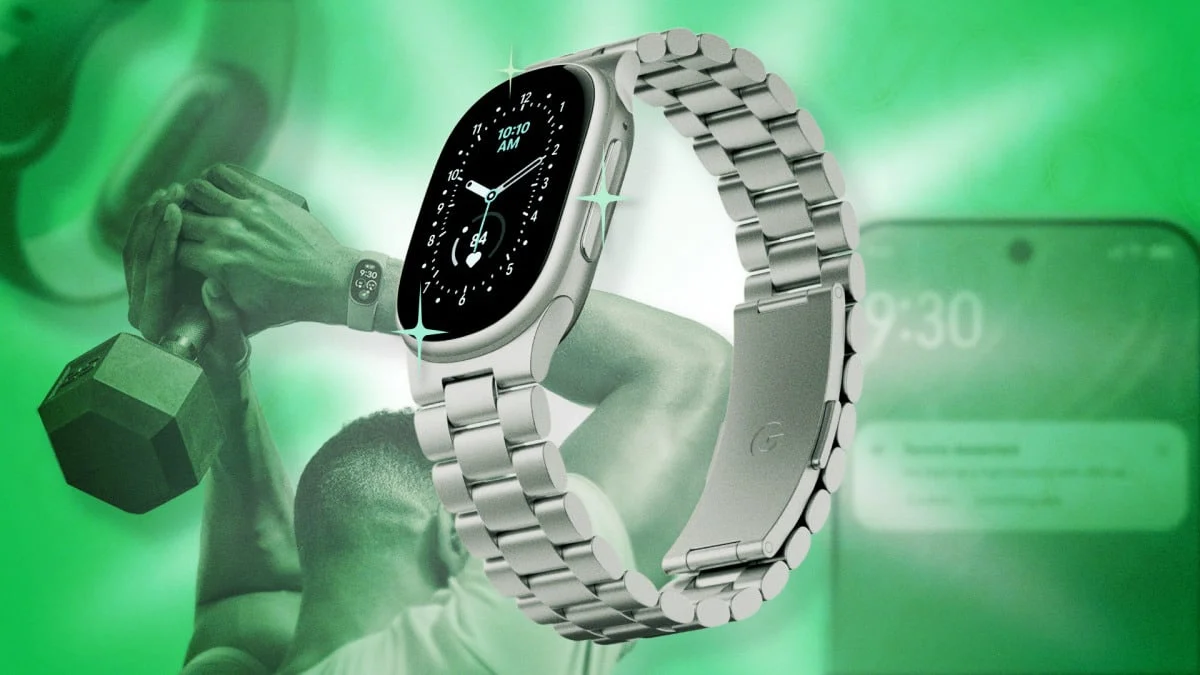
The Fitbit Edge has emerged as the definitive choice for fitness enthusiasts who prize minimalism without sacrificing the utility of a crisp, informative display. By balancing a compact form factor with robust health-tracking capabilities, the Edge successfully bridges the gap between basic activity trackers and feature-rich smartwatches. However, the true potential of the device often lies buried within layers of settings, hidden UI gestures, and integration hacks that the average user may overlook.
Whether you are looking to refine your step-counting accuracy, extend your battery life, or synchronize your data with external ecosystems like Strava, mastering these configurations can transform the Fitbit Edge from a simple tracker into a powerful personal health companion.
The Core Philosophy: Why the Edge Hits the Sweet Spot
The Fitbit Edge succeeds because it adheres to a "less is more" design philosophy. While many modern wearables attempt to replicate the functionality of a smartphone, the Edge focuses on the essential metrics: heart rate, movement, and sleep, all while maintaining a sleek profile that doesn’t feel intrusive during workouts or while sleeping. Its success is rooted in its ability to offer a "set it and forget it" experience while providing enough depth for power users to tailor the experience to their specific athletic goals.
Chronology of Customization: Getting Started
For the uninitiated, setting up the device is merely the first step. To truly derive value from the Edge, one must approach the setup process as a multi-stage optimization project.
Phase 1: Tailoring the Interface
The watch face is your primary touchpoint with the device. Many users remain tethered to the default factory setting, unaware that the Fitbit app offers a comprehensive "watch face wardrobe."
- The Carousel Method: By long-pressing the center of your current watch face, you can access a carousel of pre-selected options. Navigating to the final screen allows you to jump directly into the phone app’s library, where you can modify color schemes and select specific data complications, such as weather updates or real-time step counts.
- Tactical Orientation: If you find yourself accidentally triggering the side button during wrist-heavy exercises or because of other jewelry, you can invert the display. By navigating to Device Preferences in the Google Health app and adjusting Tracker Orientation, you can shift the button to the left side of the watch. Note that this requires a physical flip of the device on your wrist to maintain proper alignment.
Phase 2: Behavioral Adjustments
Once the interface is tuned, it is vital to refine how the device interacts with your lifestyle. The Google Health app’s AI-powered Coach is a polarizing feature. While some appreciate the automated insights, others find the constant notifications intrusive. You can achieve a middle ground by accessing Google Health Settings > Coaching and selecting "No Coach Insights." This effectively silences the unprompted chatter while keeping the "Ask Coach" function available for manual, user-initiated queries.
Supporting Data: Enhancing Precision and Connectivity
Calibrating Step Sensitivity
One of the most common criticisms of fitness wearables is the tendency to overcount steps during sedentary arm movements or daily tasks. To mitigate this, Fitbit offers a "Dominant Wrist" setting. If you wear the tracker on your non-dominant hand but find the count inflated, you can trick the algorithm by switching the Wrist Preference to "Dominant." This forces the sensor to require a higher threshold of movement before registering a step, resulting in more accurate data for users prone to high-arm-movement activities.
Integrating with External Ecosystems
While the built-in Fitbit workout app is functional, it lacks the advanced mapping capabilities of platforms like Strava. The Edge offers a unique "Heart Rate Broadcast" mode to solve this. By swiping down on the Edge screen and selecting the heart icon, the device turns into a dedicated Bluetooth heart-rate monitor. When synced with Strava, this allows your phone to map your run while pulling live heart-rate data from the watch, providing a superior level of telemetry during outdoor training.
Technical Implications: Battery and Power Management
Battery anxiety is a common concern for any wearable user. The Fitbit Edge offers several sophisticated ways to manage energy consumption:
1. Strategic GPS Utilization
The device features an "Auto" GPS mode that toggles between its internal antenna and your phone’s GPS. For users who prioritize battery life, forcing the device to use the phone’s GPS (or vice versa, for better accuracy in dense urban areas) can significantly alter performance. These settings are found under Device Preferences > GPS Settings.
2. The Five-Minute Power-Up
The Edge utilizes a high-efficiency charging architecture. Testing indicates that as little as five minutes on the charger can provide enough power for a full day of standard use. This makes the device ideal for users who utilize the "Always-On Display" (AOD). Rather than waiting for a full cycle, incorporating a brief, daily five-minute charge—perhaps while showering or prepping coffee—ensures that the device never dies, effectively eliminating the need for long, multi-hour charging sessions.
3. The "Multi-Device" Ecosystem
Google has evolved the Fitbit app to handle multiple devices simultaneously. Users who prefer a minimalist band (the Edge) for workouts but perhaps a more robust watch for professional settings can swap between devices seamlessly. The app synchronizes data across the account, meaning your progress remains continuous regardless of which hardware is currently on your wrist.
Official Perspectives and User Accessibility
Google has made significant strides in accessibility with the Edge, most notably through the Magnification feature. By enabling this in Device Preferences, users can perform a simple triple-tap gesture to zoom into the display by 2x or 3x. This is a vital inclusion for those who find the minimalist screen difficult to read in bright sunlight or for users with visual impairments.
Leveraging the AI Coach for Manual Logs
A common misconception is that the "Ask Coach" feature is only for automated suggestions. In reality, it acts as a powerful data aggregation tool. If you perform a workout outside of the Fitbit ecosystem (e.g., using a specialized weightlifting app like Hevy), you can upload a screenshot or a photo of your training journal to the Coach. By instructing it to "log this for my strength training session," the AI parses the image and adds the exercises to your fitness history. This creates a centralized record of your health journey, even when you are using third-party training tools.
Conclusion: Refining Your Digital Health Journey
The Fitbit Edge is far more than a basic step tracker. Through the intelligent application of settings—from adjusting step sensitivity and GPS logic to leveraging the rapid-charging capabilities—users can tailor the device to act as a sophisticated, unobtrusive health monitor. By taking the time to navigate these hidden features, you move beyond the default experience, turning a piece of hardware into a personalized, high-performance tool that fits seamlessly into your daily life.
As wearable technology continues to evolve, the ability to harmonize hardware efficiency with user-centric customization will remain the hallmark of a truly great device. The Fitbit Edge, when properly optimized, stands as a testament to that evolution.