For many, the Contacts app on iPhone, iPad, and Mac is little more than a static digital graveyard—a list of names and numbers that sits dormant until a call is placed or a message is sent. Yet, in an era where our professional and personal networks are expanding rapidly, the Contacts app serves as the foundational architecture for how we communicate.
Beneath its minimalist interface lies a suite of power-user features designed to streamline data management, enhance privacy, and automate the tedious tasks of cleaning up redundant information. Whether you are struggling with a cluttered list of duplicate entries or looking for faster ways to coordinate with colleagues, here is how to transform your Apple Contacts experience.
The Foundation: Why Contact Management Matters
In a world of constant connectivity, our contact lists often become bloated with outdated information, duplicate entries from syncing multiple accounts, and unorganized data. Effective management of these records is not merely about tidiness; it is about efficiency. When your contact list is optimized, the friction involved in initiating a conversation—whether via iMessage, WhatsApp, or a standard phone call—is significantly reduced.
By leveraging native tools across the Apple ecosystem, users can shift from passive storage to active management, ensuring that their digital communication remains secure, private, and highly accessible.

Chronology of Evolution: From Simple Storage to Smart Ecosystem
The evolution of the Apple Contacts app mirrors the broader transition of mobile technology from local storage to cloud-based integration. Historically, contacts were stored locally on SIM cards or device memory. With the advent of iCloud, the "single source of truth" philosophy emerged, allowing contacts to sync seamlessly across the iPhone, iPad, and MacBook.
Today, the app has evolved into a hub for third-party integration. Modern iOS and macOS updates have introduced granular privacy controls, gesture-based bulk actions, and the sophisticated NameDrop feature, which has fundamentally changed how we exchange professional and personal details in physical spaces.
Essential Hacks for Power Users
1. Eliminating the "Duplicate Clutter"
If you find yourself scrolling past multiple entries for the same person, you are likely suffering from sync errors between iCloud, Gmail, and Exchange.
- On iPhone: iOS now features an automated prompt at the top of the Contacts list when it detects potential duplicates. Simply tap "View Duplicates" to review and merge them.
- On Mac: The desktop application offers more granular control. Navigate to the Card menu and select Look for Duplicates. This tool is particularly effective for large address books where individual review is impractical.
2. The Two-Finger Gesture for Bulk Actions
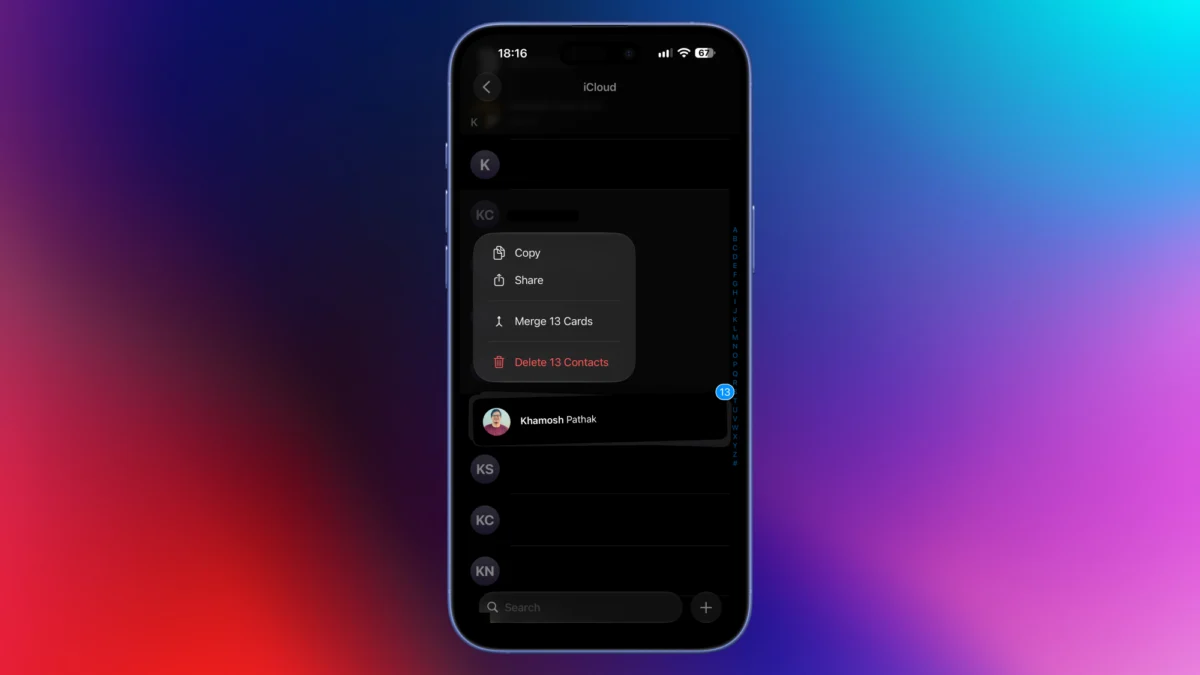
Managing a large contact list often feels like a chore due to the limitation of single-item editing. However, there is a hidden gesture that changes everything. On your iPhone or iPad, use two fingers to swipe upward or downward on your contact list. This selects multiple entries simultaneously. Once highlighted, you can tap and hold to initiate bulk deletion, sharing, or group categorization, bypassing the need to edit each entry one by one.

3. Accelerated Contact Sharing
Privacy is paramount, and Apple’s default sharing prompt is designed to protect you by asking which fields to include. While this is secure, it is slow. For rapid sharing, utilize the copy-paste method. Hold a contact’s name, select Copy, and paste it directly into an iMessage thread. While this currently lacks support for third-party apps like WhatsApp, it is the fastest way to share information with family and friends.
4. Third-Party Messaging Integration
Your Contacts app is the gateway to your favorite messaging platforms. By long-pressing the message button on any contact card, you can bypass the main app interface. This reveals a sub-menu of installed apps like WhatsApp, Signal, or Telegram. This is especially useful for messaging people whose numbers you have saved but with whom you have not yet initiated a chat in a specific third-party client.
5. Customizing Call Apps via the Call Button
Just as you can initiate chats, you can dictate which app you use to place a call. By long-pressing the call button on a contact card, iOS displays a list of available VoIP services. This is a game-changer for international communication or for users who prefer to route all their calls through specific encrypted services rather than cellular voice.
6. Expedited Deletion
Deleting contacts on an iPhone can be an arduous process of navigating deep into sub-menus. To speed this up, simply long-press a contact name from the main list view. A pop-up will appear allowing you to select Delete immediately. When combined with the two-finger selection gesture mentioned earlier, you can clean up your entire address book in a fraction of the time it would take using traditional methods.

7. Exporting and Archiving (The vCard Advantage)
Data portability is essential for backup. On a Mac, you can export your entire address book by going to File > Export > Export vCard. This creates a .vcf file, which is a universal format compatible with Google Contacts, Outlook, and various CRM platforms. For those who prefer physical records or need to present contact information in a clean format, the Export as PDF option is an underutilized feature for printing or emailing list segments.
8. Mastering the Contact Template
The default template for adding new contacts is often cluttered with unnecessary fields like "Phonetic Last Name" or "Messenger ID." You can refine your input workflow on Mac by going to Card > Add Field > Edit Template. Here, you can remove unused fields, ensuring that every time you hit the "+" button to add a new person, the interface is lean and focused on the information you actually use.
9. Smart Lists for Temporal Organization
The "Smart List" feature is arguably the most powerful tool for professional networking. By navigating to File > New Smart List on a Mac, you can create dynamic groups based on specific criteria. For instance, setting a rule for "Card has changed in the last 10 days" allows you to instantly pull up a list of everyone you’ve recently added or modified—perfect for following up with new professional acquaintances whose names you may have forgotten.
10. Securing Your Identity with NameDrop
NameDrop, introduced in recent iOS iterations, allows for the exchange of contact information by bringing two devices close together. While convenient, it is also a potential privacy risk if your contact card contains sensitive data. Before engaging with NameDrop, tap your own contact card in the app and select Edit. Remove your home address, birthdate, or secondary emails. Furthermore, replace generic or candid photos with a professional headshot or a Memoji to maintain a boundary between your private life and your public-facing digital profile.

Implications of Better Contact Management
The implications of mastering these features extend far beyond mere convenience. In a professional context, a well-curated contact list serves as a high-functioning personal database. Using Smart Lists to group former colleagues or contacts by industry allows for more effective networking.
From a security standpoint, the move toward refining your personal contact card—limiting what you share via NameDrop—is a critical component of digital hygiene. As we continue to share our digital identities with more people in more contexts, controlling the granularity of that data is no longer optional; it is essential.
Conclusion
The Apple Contacts app is a testament to the idea that the most powerful tools are often those we overlook. By moving past the basic functionality of storing numbers and embracing the power-user features—from smart filtering to bulk gesture management—you can turn a mundane task into a streamlined process.
The next time you reach for your iPhone to save a new number or share a contact, remember: you have the power to make that interaction faster, cleaner, and more secure. Take the time to audit your lists, set up your smart filters, and refine your sharing settings. Your digital Rolodex is a reflection of your professional network; keeping it organized is the first step toward better communication.